Docs
Doc / Install / MacOS
Installing on MacOS
Desktop Application (Recommended)
OmniEdge macOS Desktop is compatible with Apple Silicon (M1/M2/M3/M4) Macs, macOS 12 or later. Last update: Version v2.9.0, Feb 16, 2026.
Download
| Platform | Download |
|---|---|
| Apple Silicon (M1/M2/M3/M4) | omniedge-desktop-2.9.0-macos-arm64.dmg |
| Intel Mac | omniedge-desktop-2.9.0-macos-x64.dmg |
Installation Steps
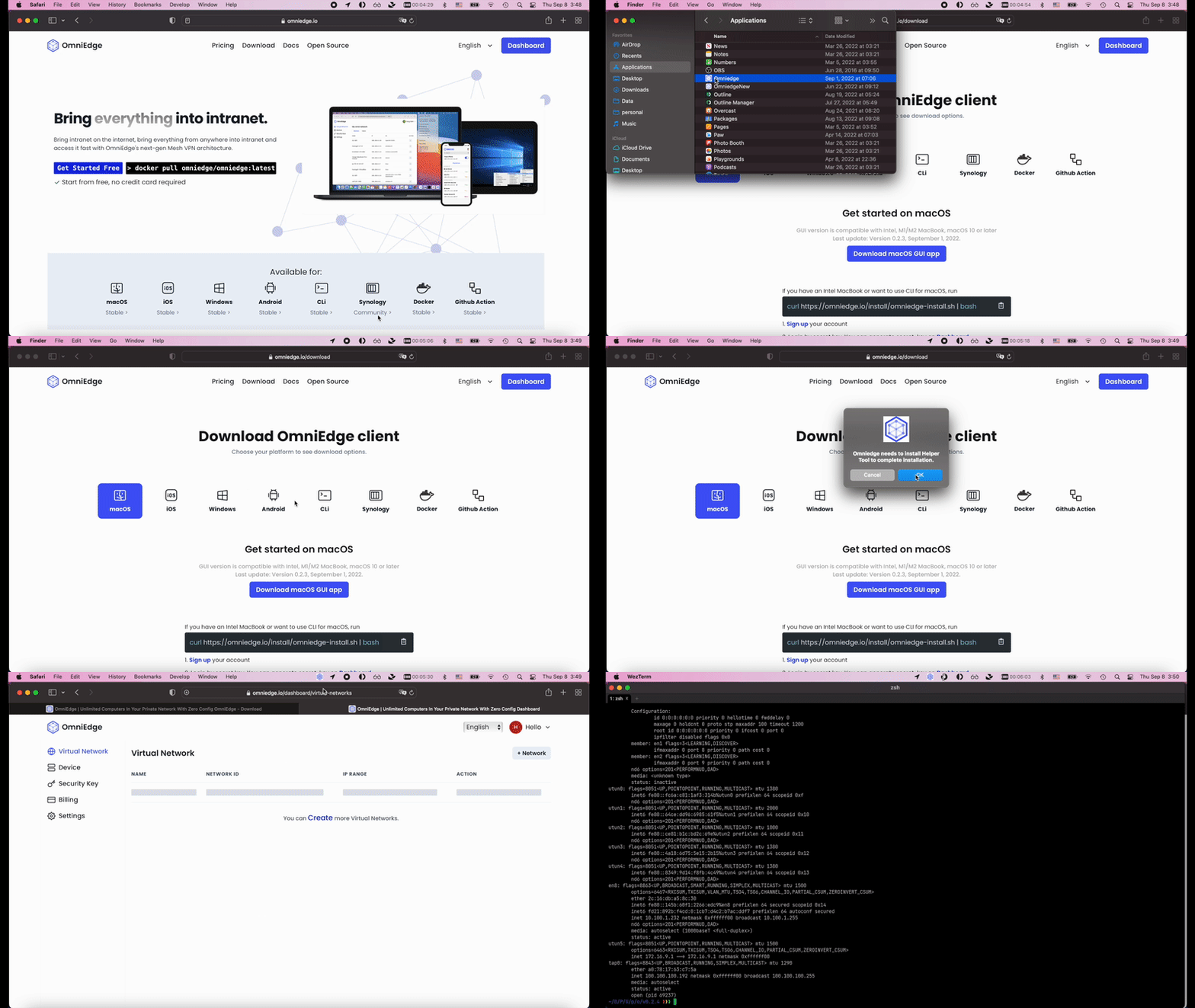
- Download the
.dmgfile for your Mac (ARM64 for Apple Silicon, x64 for Intel) - Open the DMG and drag OmniEdge to Applications
- Open OmniEdge from Applications
- If you see a security warning:
- Open System Settings → Privacy & Security
- Scroll down and click Open Anyway next to the OmniEdge message
- Click Open in the confirmation dialog
CLI (For Advanced Users)
OmniEdge macOS CLI is compatible with both Intel and Apple Silicon (M1/M2/M3/M4) Macs, macOS 10 or later. Last update: Version v2.9.0, Feb 16, 2026.
Quick Install
curl -fsSL https://raw.githubusercontent.com/omniedgeio/omniedge/main/scripts/omniedge-install.sh | bashManual Download
| Platform | Download |
|---|---|
| Apple Silicon | omniedge-cli-2.9.0-macos-arm64.tar.gz |
| Intel Mac | omniedge-cli-2.9.0-macos-x64.tar.gz |
Usage
# Connect to your network (interactive login on first run)
sudo omniedge start

# Or use security key for non-interactive login
sudo omniedge start -s <security_key> -n <network_id>

# Check status
omniedge status

# Stop connection
omniedge stop
New Features in v2.2.1
- WASM Plugin System: Extend functionality with secure WebAssembly plugins
- NAT Traversal: Advanced STUN-based NAT detection with relay fallback
- Exit Node Support: Route all traffic through a secure exit node
- Self-Hosted Mode: Run completely offline with nucleus mode
CLI Reference
# Plugin management (v2.2.0+)
omniedge plugin list              # List installed plugins
omniedge plugin install <path>    # Install plugin from ZIP
omniedge plugin info <id>         # Show plugin details

# NAT configuration (v2.1.0+)
omniedge config show              # Show current settings
omniedge config relay on          # Enable relay fallback
omniedge config portmap on        # Enable UPnP/NAT-PMP
If you have more questions, feel free to discuss.
On This Page