Docs
Doc / Dashboard
Dashboard Admin
You can access the admin dashboard by login in OmniEdge, there are Virtual Network, Devices, Security Key, and Settings pages you can manage your service.
1. Virtual Network
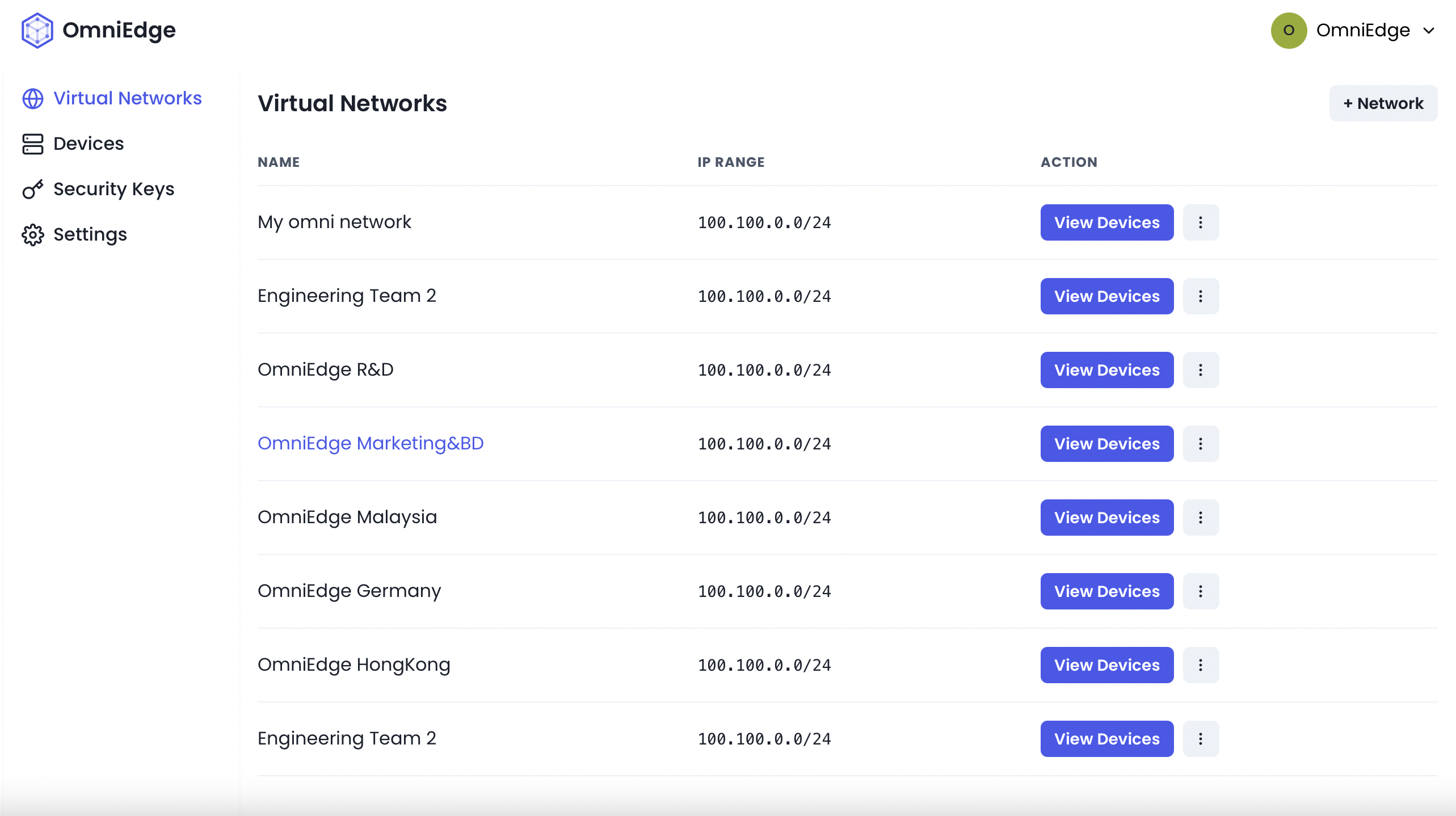
You can create your own Virtual Network for your Team or personal purpose, by simplifying click + Network, put name of virtual network and IP Range, You can use the Private IPv4 Addresses: 10.0.0.0 – 10.255.255.255, 172.16.0.0 – 172.31.255.255 and 192.168.0.0 – 192.168.255.255, or better use CGNAT address 100.64.0.0/10 subnet (from 100.64.0.0 to 100.127.255.255) reserved by RFC6598 which doesn’t conflict with the commonly-used private addresses your network might already use (10.0.0.0/8, 192.168.0.0/16, etc).
2. Sharing Virtual Networks
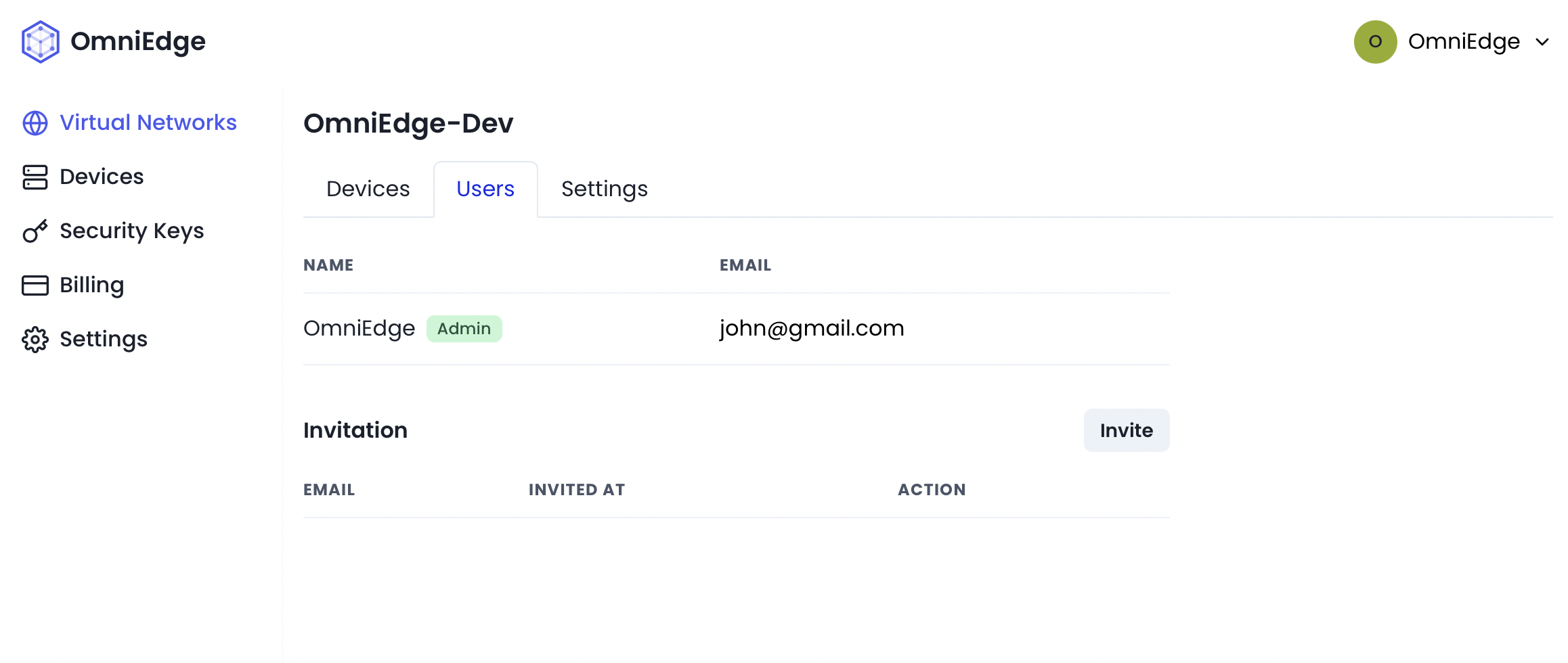
You can invite your friends, teammate, or anyone you trust to your own Virtual Network.
3. Devices
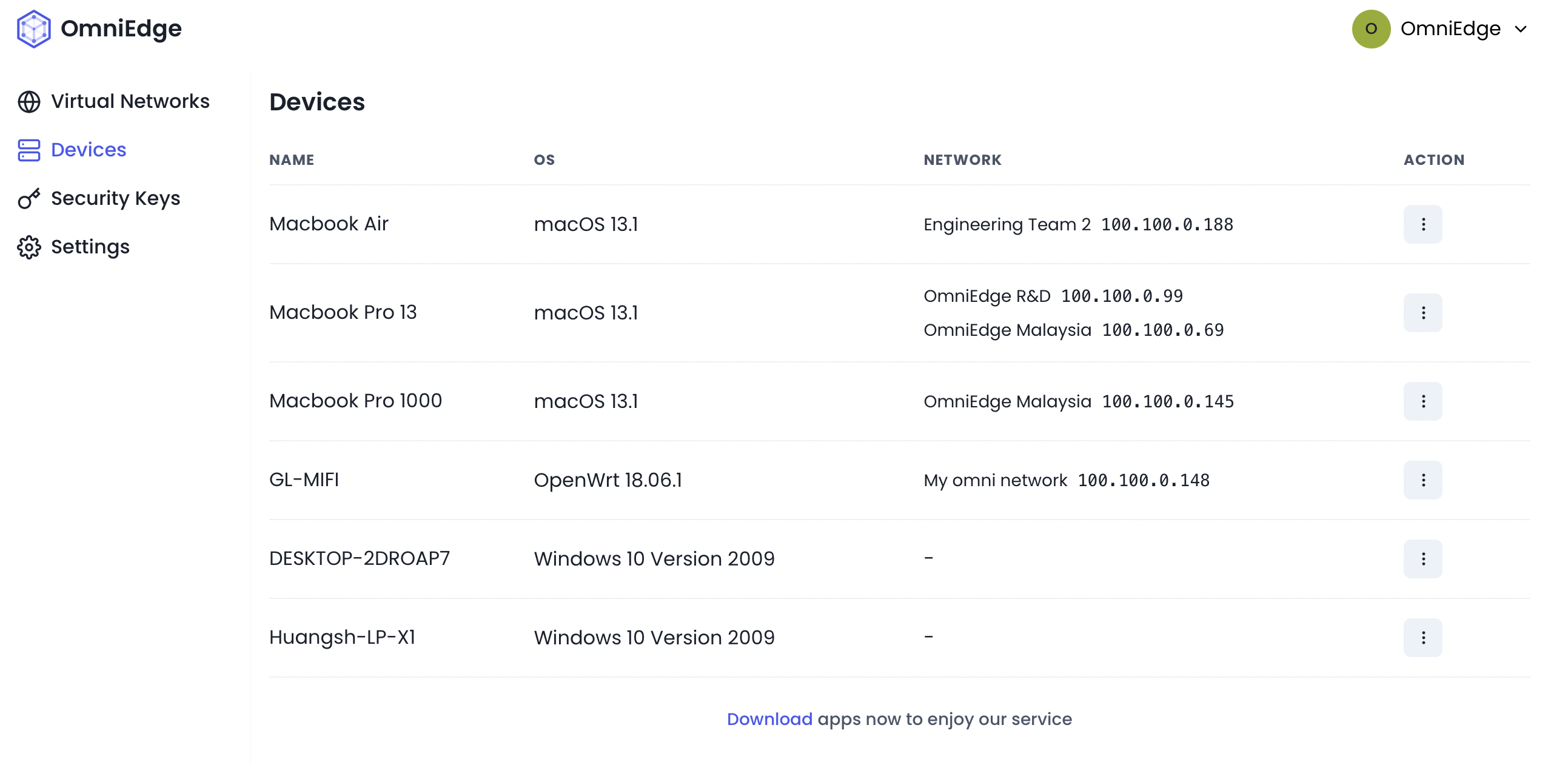
A Devices have to be registered before join the virtual network, and it will be listed as soon as registered successfully. You can change the device's name as you want.
4. Subnet Routers
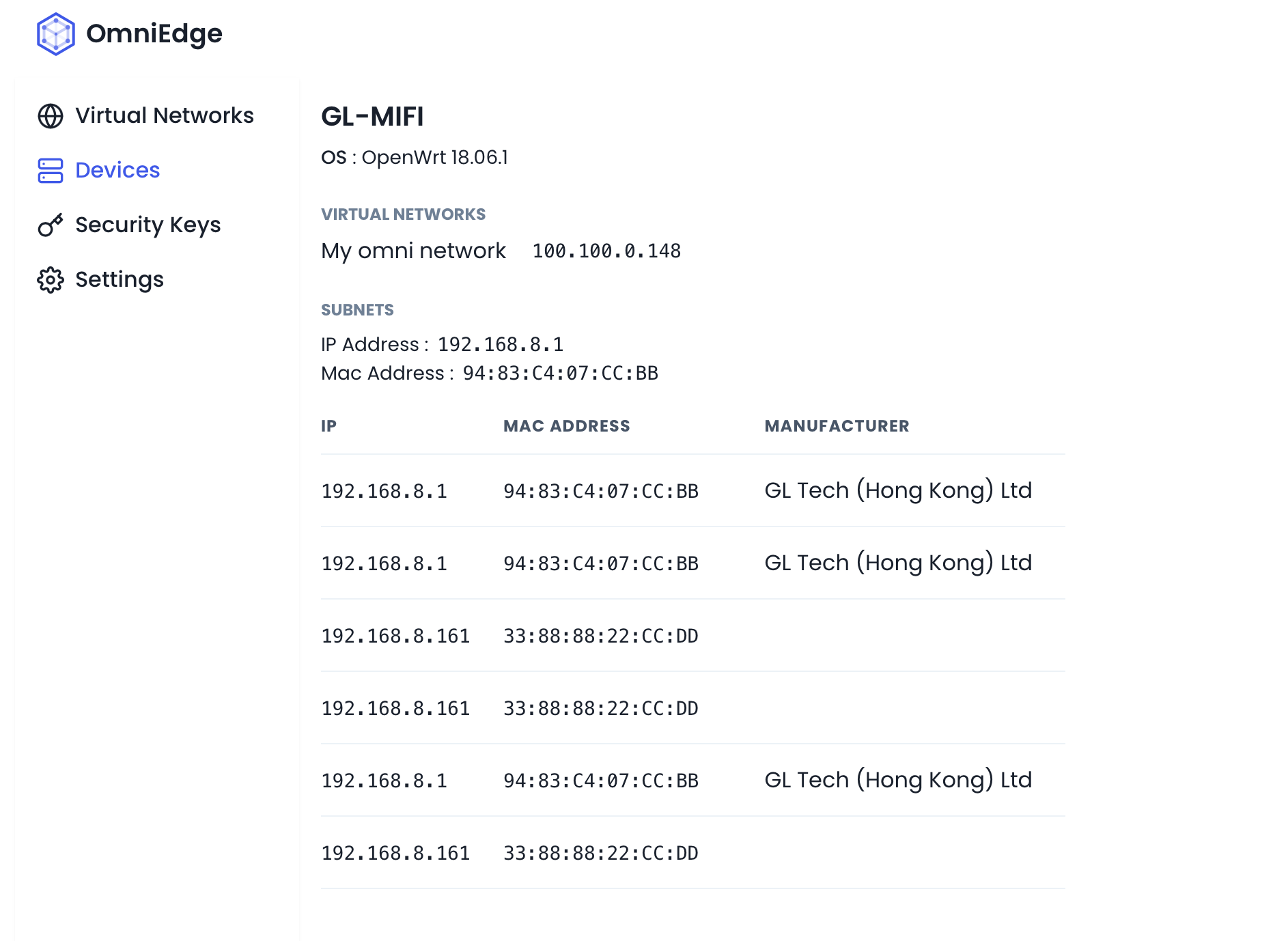
The devices can run as a router, you can manage all the LAN devices connecting to the router device.
5. Security Keys
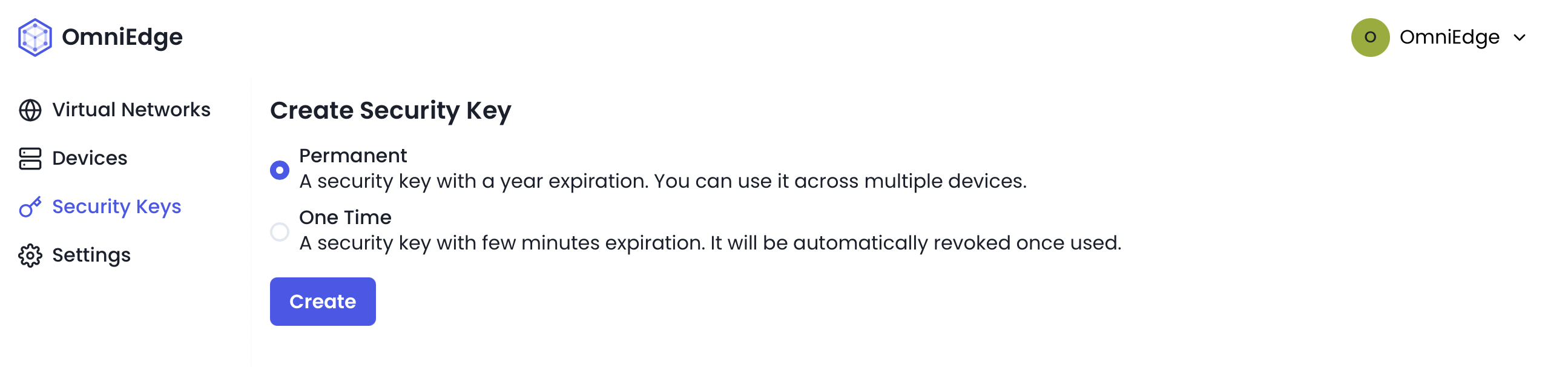
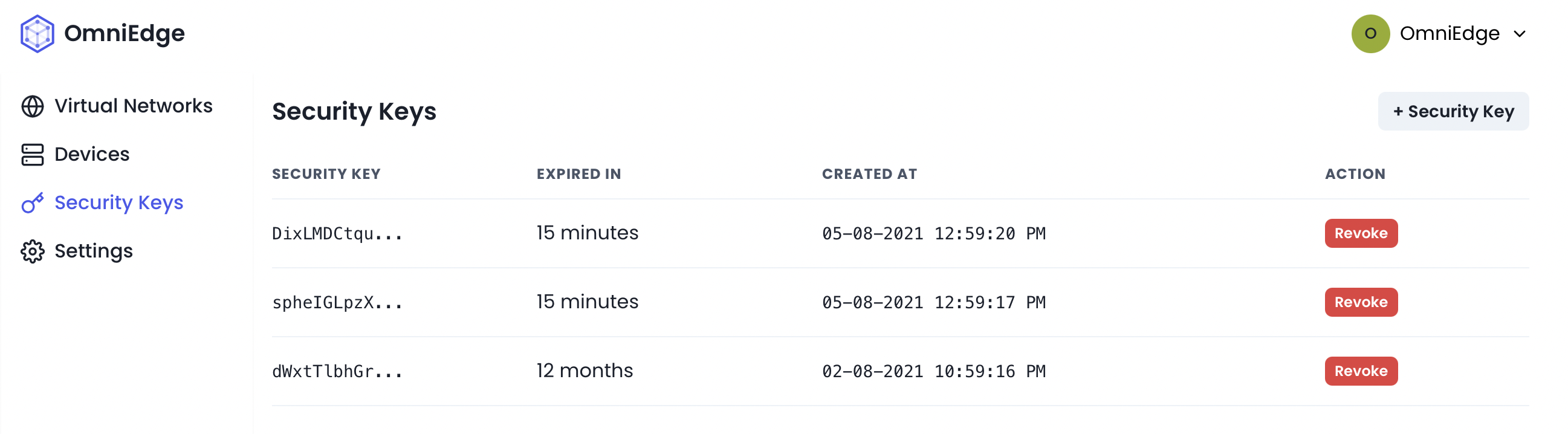
Security Key is used to register devices, there are two kinds of Security OmniEdge offers:
- Permanent Key: A security key with a year expiration. You can use it across multiple devices.
- One Time Key: A security key with a few minutes expiration. It will be automatically revoked once used.
6. Customize Nucleus Server
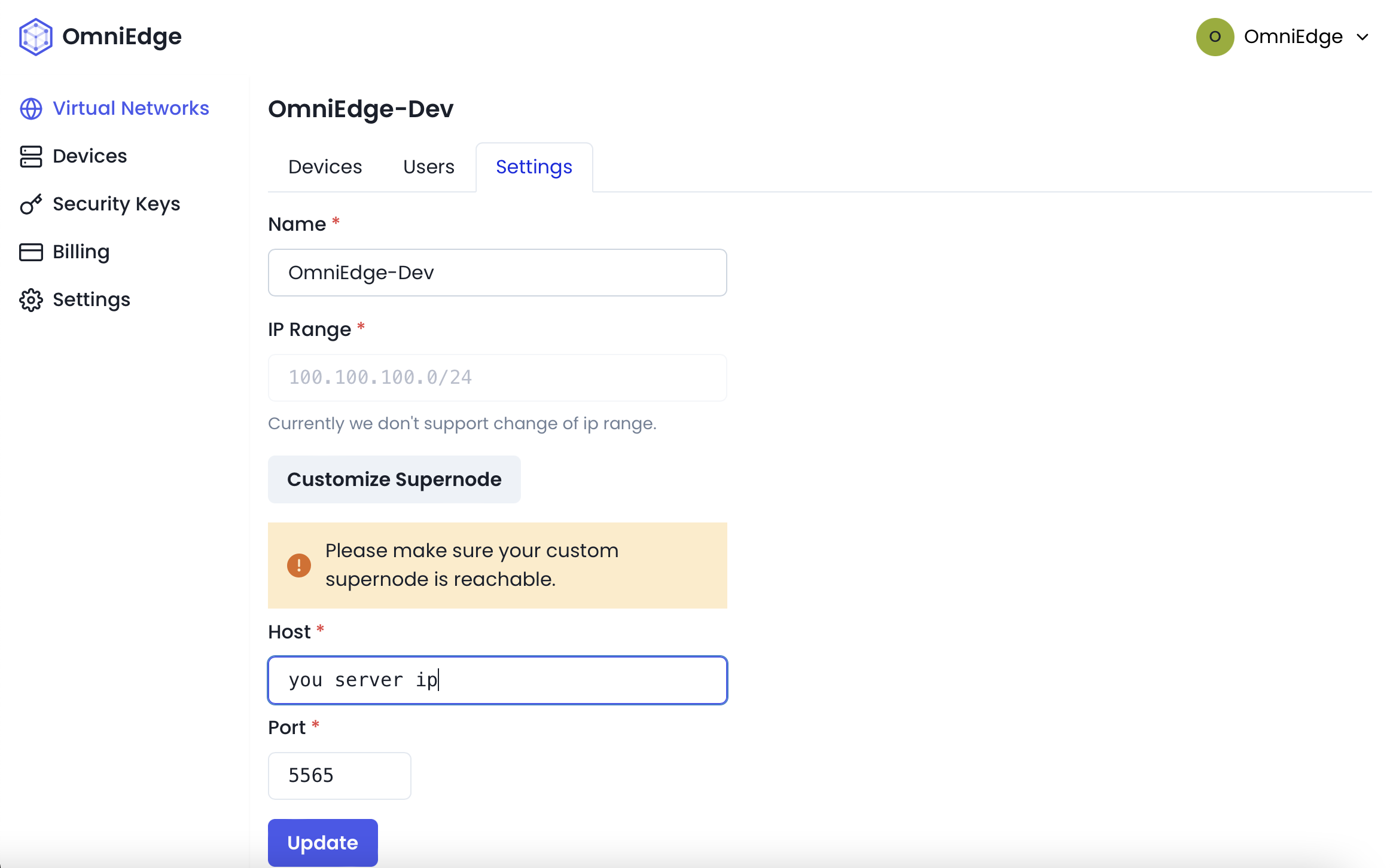
You can setup your own Nucleus Server to increase security and speed for your Virtual Network, read the doc Customize Nucleus Server installation to setup your own Nucleus Server.
7. Two Factor Authentication
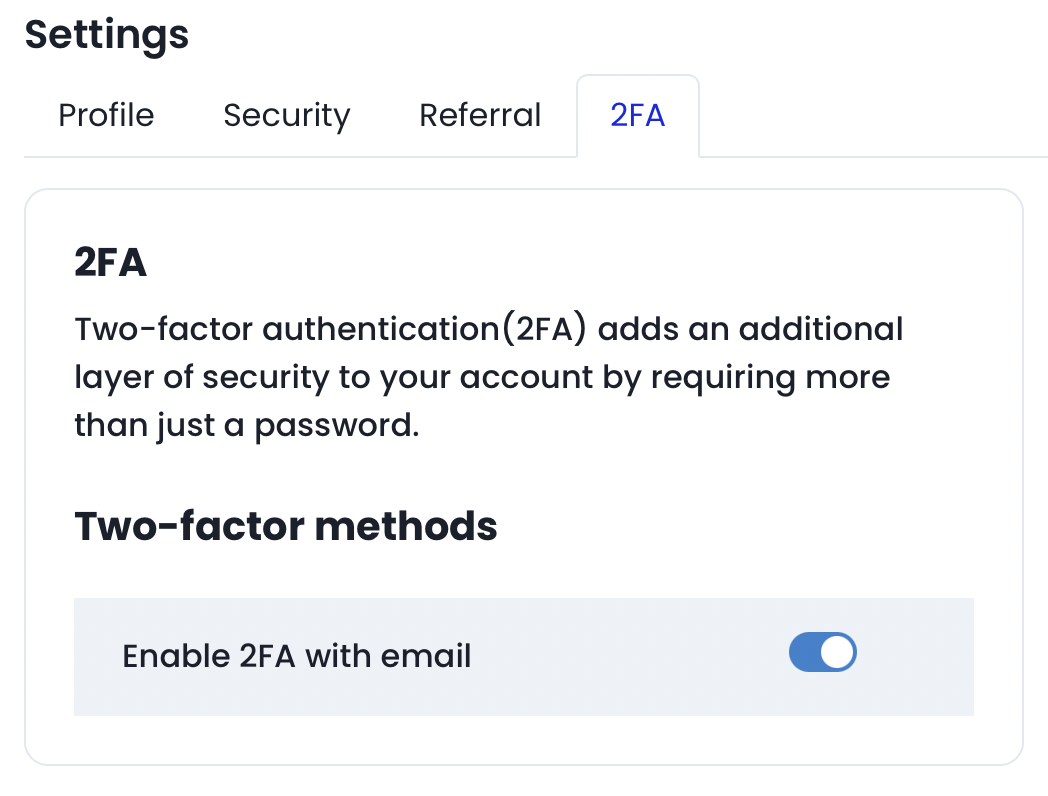
Two-factor authentication(2FA) adds an additional layer of security to your account by requiring more than just a password. You will need your 2FA code to modify your virtual network and more in the future.
8. Exit Node
Exit Node allows you to route all your traffic through a specific device in your virtual network. This is useful for accessing the internet via a trusted node or bypassing local network restrictions.
9. Credential Rotation
Enhance your network security by rotating your virtual network's credentials. Rotating credentials will generate a new Community Name and Secret Key. All connected devices will need to reconnect to receive the new credentials.
If you have more questions, feel free to discuss.
On This Page