Docs
Doc / Cases / Hybrid Cloud
Build and Secure Hybrid Cloud with OmniEdge
What is a Hybrid Cloud?
Hybrid cloud is a mixed computing cloud service. It is made of on-premises datacenter or private cloud in enterprise own data center, or multiply edge Computing and a public cloud like AWS, Azure, Google and Oracle in their datacenter. The definition is quite similar by the public cloud suppliers:
AWS: A hybrid cloud is a mixture among the cloud, on premises, and at the edge.
Microsoft Azure: A hybrid cloud—sometimes called a cloud hybrid—is a computing environment that combines an on-premises datacenter (also called a private cloud) with a public cloud, allowing data and applications to be shared between them.
Google Cloud: A hybrid cloud is one in which applications are running in a combination of different environments.
IBM: Hybrid cloud combines and unifies public cloud, private cloud and on-premises infrastructure to create a single, flexible, cost-optimal IT infrastructure.
Benefits
The most attractive to use hybrid cloud is the great ROI, nearly 76% of Companies are Adopting Multicloud and Hybrid Cloud Approaches according to Oracle. Besides this, there are benefits like effective application governance, improved performance and reduced latency, flexible operations.
Build Hybrid Cloud with OmniEdge v2.x
OmniEdge v2.x provides industrial-grade mesh networking for hybrid cloud with:
- 6-Sigma stability (Cpk 2.92) for deterministic networking
- 99%+ NAT traversal success rate with relay fallback
- End-to-end encryption using WireGuard
- Self-hosted option for air-gapped environments
1. Create an OmniEdge Account
Sign up at: https://connect.omniedge.io/register
2. Create Hybrid Cloud Virtual Network
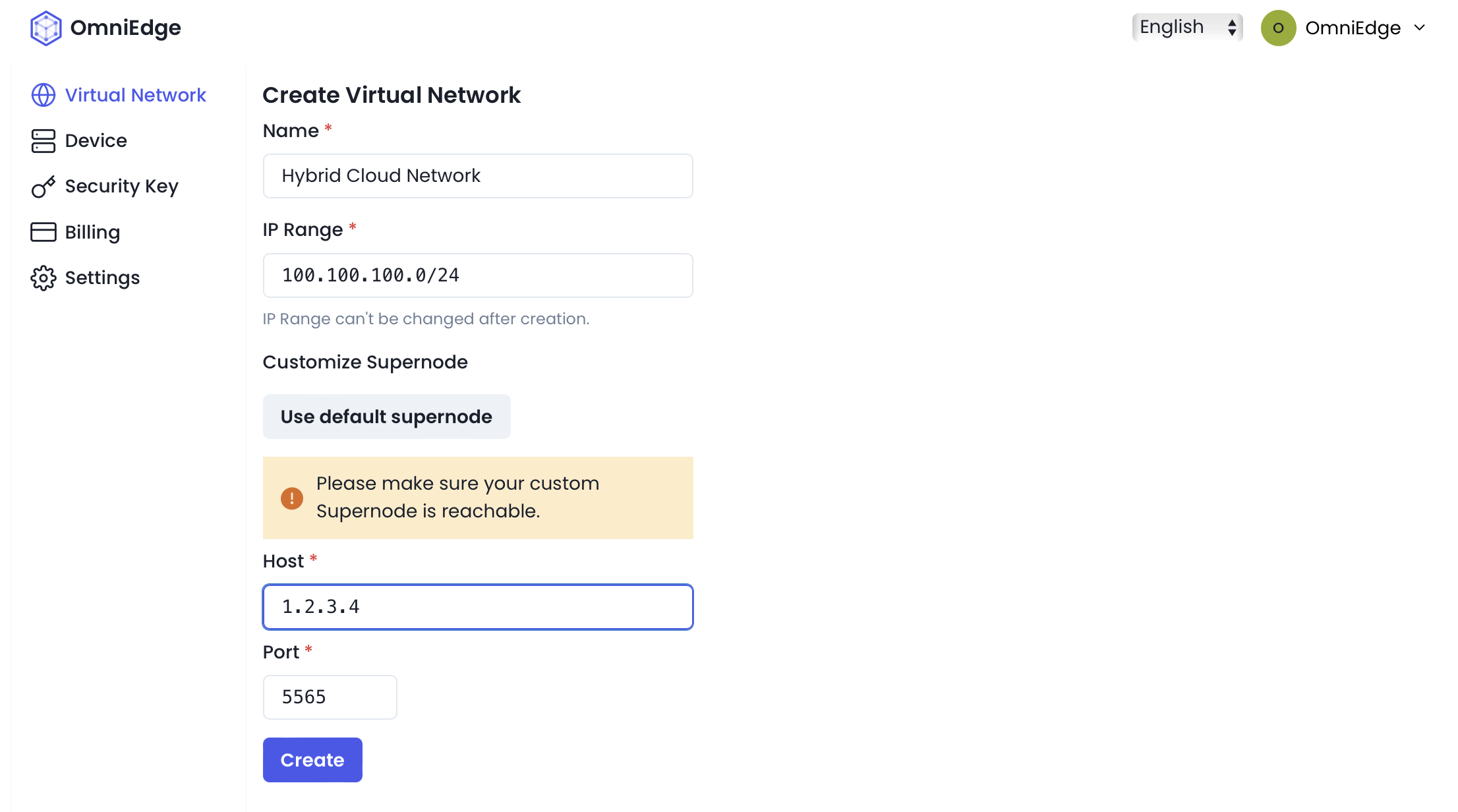
Go to OmniEdge Dashboard
Create a hybrid cloud Virtual Network by clicking + Network, put name of Hybrid Cloud Network and IP Range. You can use Private IPv4 Addresses: 10.0.0.0 – 10.255.255.255, 172.16.0.0 – 172.31.255.255 and 192.168.0.0 – 192.168.255.255. Or CGNAT address space reserved by RFC 6598.
We recommend using CGNAT (e.g., 100.100.100.0/24) which doesn't conflict with commonly-used private addresses.
3. (Optional) Self-Hosted Nucleus Server
For air-gapped or high-security environments, run your own signaling server:
# On a server with public IP (or within your private network)
sudo omniedge start --mode nucleus --port 51821 --secret "YourSecureSecret16+"
Configure your virtual network to use this custom nucleus in the dashboard settings.
4. Create Cloud Instances
Create instances on your preferred cloud providers:
- AWS, Azure, Google Cloud
- Alibaba Cloud, Oracle Cloud
- Affordable options: Vultr, DigitalOcean
5. Prepare On-Premise Infrastructure
Set up your on-premise servers, edge computing devices (Jetson, Raspberry Pi), or industrial equipment.
6. Install OmniEdge on All Nodes
Install OmniEdge CLI on each node in your hybrid cloud:
# Quick install (Linux/macOS)
curl -fsSL https://raw.githubusercontent.com/omniedgeio/omniedge/main/scripts/omniedge-install.sh | bash
Connect Using Security Key (Recommended for Servers)
Generate a security key from OmniEdge Dashboard, then:
# Connect to your hybrid cloud network
sudo omniedge start -s YOUR_SECURITY_KEY -n YOUR_NETWORK_ID
Verify Connection
omniedge status

# Example output:
# Status: Connected
# Virtual IP: 100.100.100.5
# Network: Hybrid Cloud Network
# NAT Type: Full Cone
Each node joined to the Hybrid Cloud Network receives a fixed virtual IP. All nodes can communicate using these IPs regardless of their physical location.
7. Run as System Service
For production deployments, configure OmniEdge to start on boot:
# Linux with systemd
sudo tee /etc/systemd/system/omniedge.service << 'EOF'
[Unit]
Description=OmniEdge VPN
After=network-online.target
Wants=network-online.target

[Service]
Type=simple
ExecStart=/usr/local/bin/omniedge start -s YOUR_SECURITY_KEY -n YOUR_NETWORK_ID
Restart=always
RestartSec=10

[Install]
WantedBy=multi-user.target
EOF

sudo systemctl daemon-reload
sudo systemctl enable omniedge
sudo systemctl start omniedge
Secure Public Cloud for the Hybrid Cloud
By limiting allowed IPs on the public cloud, we can hide the public IP. Here's an AWS example:
Log into your AWS EC2 Console, select your Windows EC2, and change the security group setting. In Edit Inbound rules, change the source for RDP from 0.0.0.0/0 to 100.100.100.0/24.
The source CIDR blocks 0.0.0.0/0 means every IP is allowed to connect to the EC2.
While 100.100.100.0/24 limits the connection access to only devices in your OmniEdge virtual network.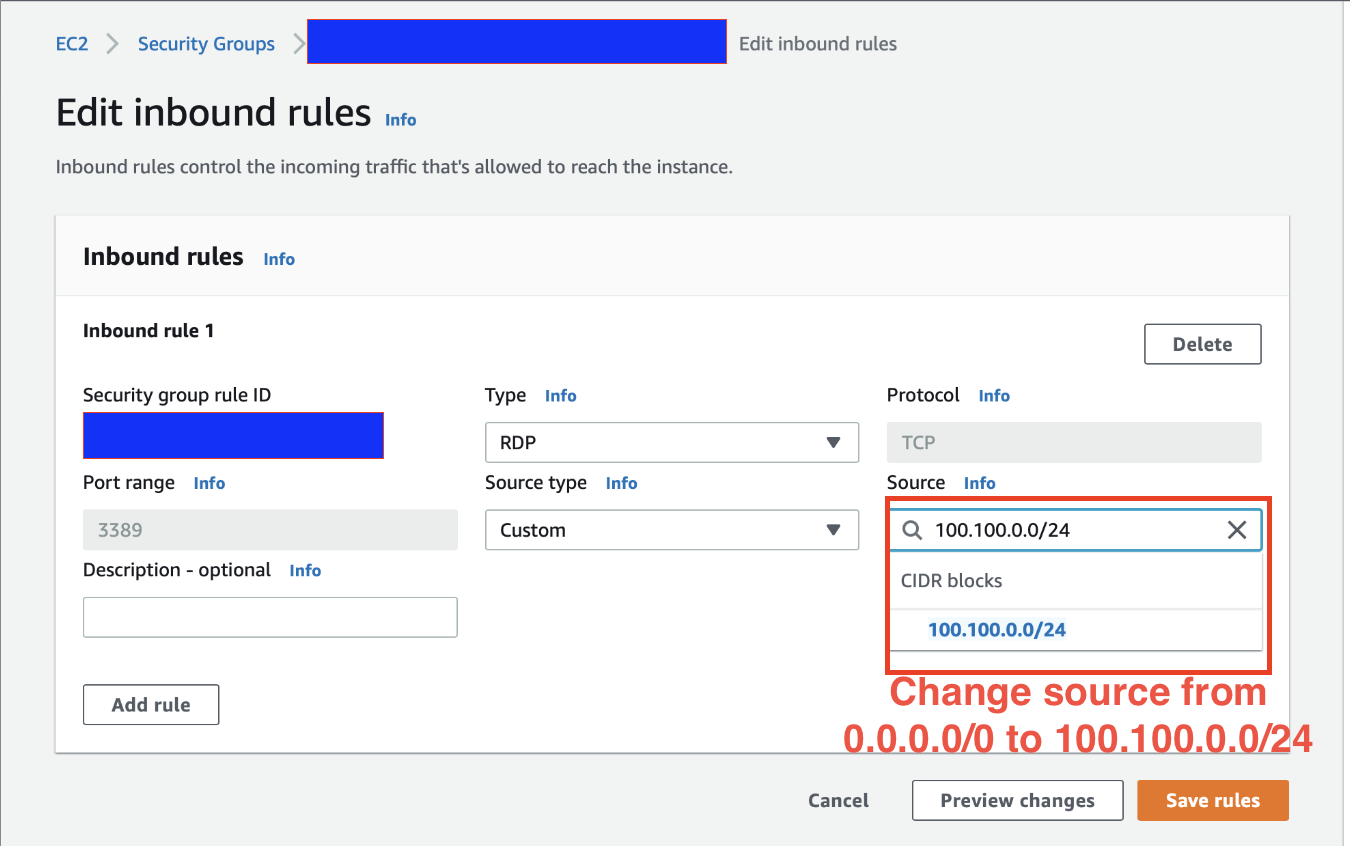
Access Services Running on Hybrid Cloud
All team members can access services via their virtual IP addresses by:
- Being invited to the hybrid cloud network by the admin
- Installing OmniEdge on their devices (macOS, Windows, Linux)
- Connecting to the network
# Access a database running on cloud instance
psql -h 100.100.100.10 -U admin -d production

# SSH to edge device
ssh user@100.100.100.25

# Access web service
curl http://100.100.100.5:8080
Architecture Example
┌─────────────────────────────────────────────────────────────────┐
│                    Hybrid Cloud Network                          │
│                      100.100.100.0/24                            │
│                                                                  │
│  ┌──────────────┐  ┌──────────────┐  ┌──────────────┐           │
│  │   AWS EC2    │  │   Azure VM   │  │   On-Prem    │           │
│  │ 100.100.100.1│  │100.100.100.2 │  │100.100.100.10│           │
│  └──────┬───────┘  └──────┬───────┘  └──────┬───────┘           │
│         │                 │                  │                   │
│         └─────────────────┼──────────────────┘                   │
│                           │                                      │
│                  ┌────────▼────────┐                             │
│                  │  OmniEdge Mesh  │                             │
│                  │  (WireGuard)    │                             │
│                  └────────┬────────┘                             │
│                           │                                      │
│         ┌─────────────────┼──────────────────┐                   │
│         │                 │                  │                   │
│  ┌──────▼───────┐  ┌──────▼───────┐  ┌──────▼───────┐           │
│  │ Edge Device  │  │   Jetson     │  │  Developer   │           │
│  │100.100.100.20│  │100.100.100.21│  │100.100.100.50│           │
│  └──────────────┘  └──────────────┘  └──────────────┘           │
└─────────────────────────────────────────────────────────────────┘
Enjoy!
If you have more questions, feel free to discuss.
On This Page