Docs
Doc / Cases
Display and Control Your Android Device with OmniEdge
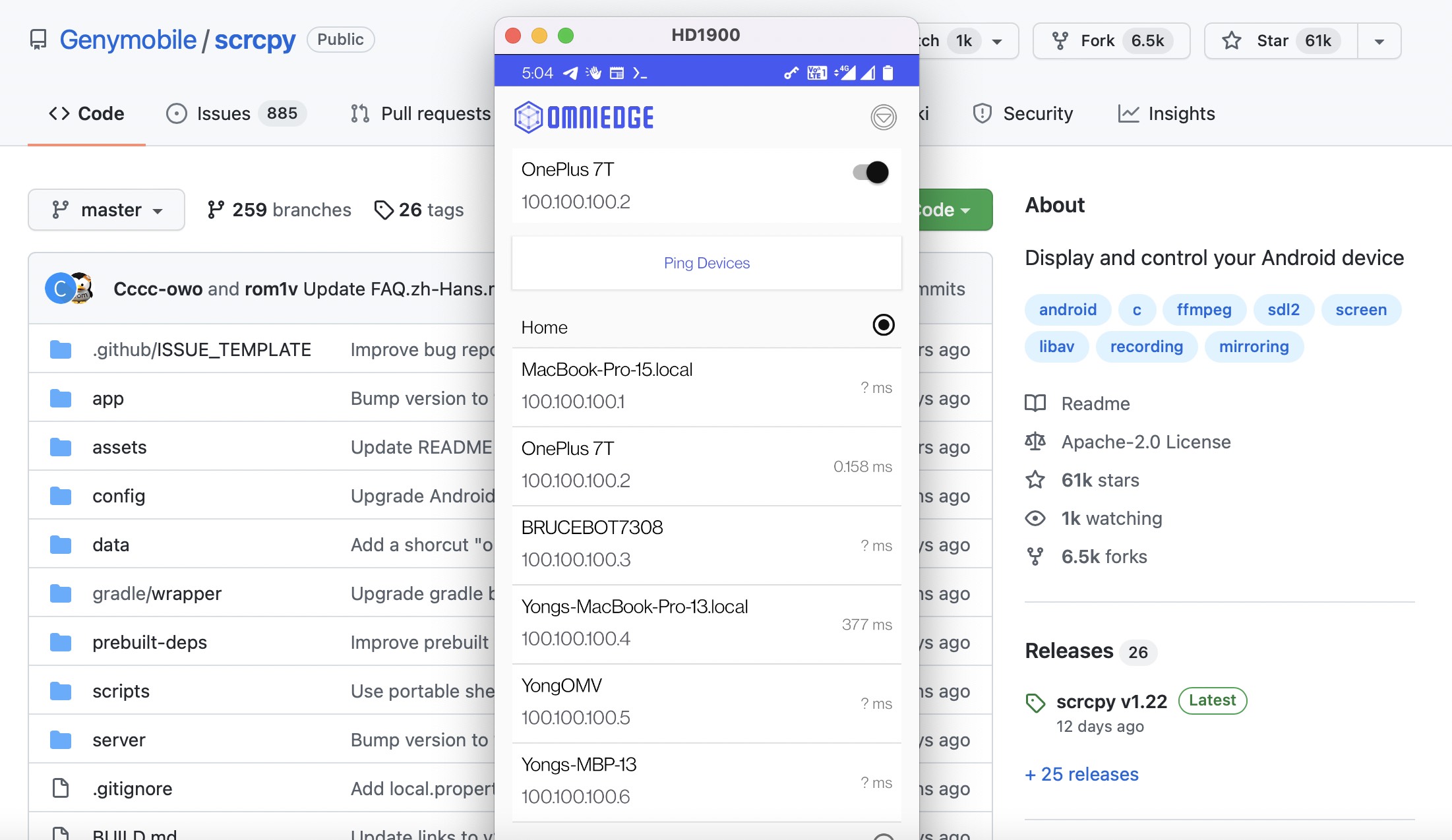
Scrcpy (pronounced "screen copy") is an application that provides display and control of Android devices connected via USB or TCP/IP. It does not require root access and works on GNU/Linux, Windows, and macOS.
With OmniEdge, Scrcpy can display and control Android devices over OmniEdge's peer-to-peer network from anywhere in the world.
Scrcpy Features
- Screen mirroring and recording
- Mirroring with device screen off
- Copy-paste in both directions
- Configurable quality
- Device screen as webcam (V4L2, Linux-only)
- Physical keyboard/mouse simulation (HID, Linux-only)
Requirements
- Android device with API 21+ (Android 5.0+)
- ADB debugging enabled on your Android device
- Additional option for keyboard/mouse control on some devices
- OmniEdge installed on your computer (macOS, Windows, Linux)
Note: OmniEdge for Android v2.x is coming soon. Currently, Android devices can be controlled via ADB over OmniEdge when connected to a computer running OmniEdge.
Install Scrcpy
macOS
brew install scrcpy

# Install ADB if not present
brew install android-platform-tools
Linux
# Ubuntu/Debian
sudo apt install scrcpy

# Or via snap
sudo snap install scrcpy
Windows
Download from Scrcpy Releases
Install OmniEdge
Quick Install (Linux/macOS)
curl -fsSL https://raw.githubusercontent.com/omniedgeio/omniedge/main/scripts/omniedge-install.sh | bashConnect to Your Network
# Start OmniEdge (interactive login on first run)
sudo omniedge start

# Or use security key for automation
sudo omniedge start -s YOUR_SECURITY_KEY -n YOUR_NETWORK_ID
Verify Connection
omniedge status
# Note your virtual IP, e.g., 10.100.100.1
Connect Android Device via ADB
Option 1: USB First, Then Wireless
- Connect Android device via USB
- Enable ADB over TCP/IP:
adb tcpip 5555- Connect to the device's OmniEdge IP:
adb connect 10.100.100.2:5555- Disconnect USB cable
Option 2: Wireless ADB (Android 11+)
On Android 11+, you can pair wirelessly:
- Go to Settings → Developer options → Wireless debugging
- Tap Pair device with pairing code
- On your computer:
adb pair 10.100.100.2:XXXXX  # Use the port shown on device
# Enter the pairing code

adb connect 10.100.100.2:5555
Display and Control Android with Scrcpy
Once ADB is connected over OmniEdge:
scrcpy --tcpip=10.100.100.2:5555Example output:
scrcpy 2.4 <https://github.com/Genymobile/scrcpy>
INFO: Connected to 10.100.100.2:5555
INFO: Device: Samsung SM-G998B (Android 13)
INFO: Renderer: metal
INFO: Initial texture: 1080x2400
A window opens showing your Android device's screen, which you can control with your keyboard and mouse.
Advanced Scrcpy Options
# Lower quality for slower networks
scrcpy --tcpip=10.100.100.2:5555 --max-size 1024 --bit-rate 2M

# Record session
scrcpy --tcpip=10.100.100.2:5555 --record session.mp4

# View only (no control)
scrcpy --tcpip=10.100.100.2:5555 --no-control

# Stay awake while connected
scrcpy --tcpip=10.100.100.2:5555 --stay-awake
Use Cases
Remote Tech Support
Control a family member's Android device to help them troubleshoot:
- Both devices connect to same OmniEdge network
- ADB connect to their device's virtual IP
- Use scrcpy to see and control their screen
Development and Testing
Test your Android app on a device at home while working remotely:
- Leave Android device connected to a computer at home
- Both computers join the same OmniEdge network
- ADB connect and use scrcpy from anywhere
Digital Signage Management
Manage Android-based digital signage displays remotely:
- Each display joins the OmniEdge network
- Connect via ADB and scrcpy for management
If you have more questions, feel free to discuss.
On This Page